 NEXAURA STORES

 Sell on Nexaura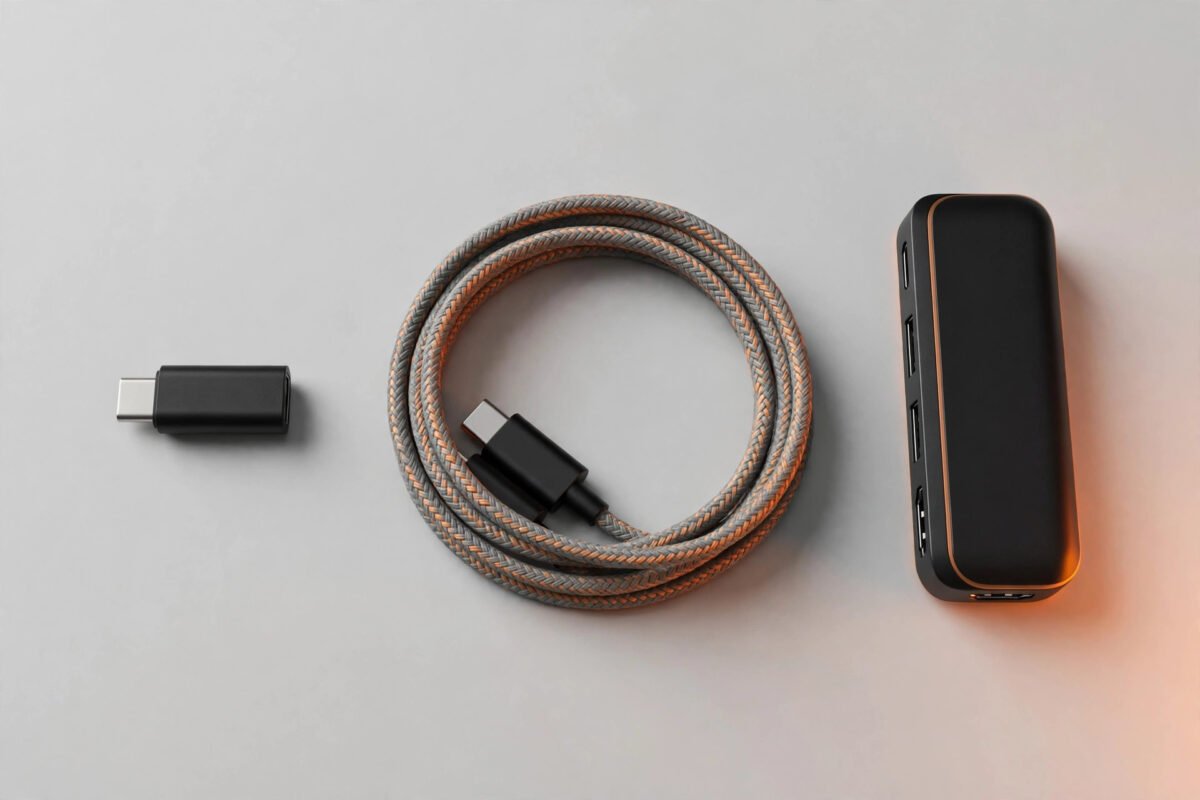
NEXAURA BUYING GUIDE
USB-C Adapters Explained: Which One Do You Actually Need? (2026 UK Guide)
New laptop, old accessories? Here is every USB-C adapter type explained in plain English — and the one £3.99 adapter that solves the most common problem.
If you have bought a phone or laptop in the last few years, you have met USB-C: the small, reversible connector that is slowly replacing every other port on your desk. It is a brilliant standard — one cable for charging, data, video and audio. The trouble is that the rest of your kit has not caught up. Your trusty USB flash drive still has a chunky USB-A plug. Your office projector wants HDMI. Your favourite wired headphones need a 3.5mm jack. That gap between the new port and your old accessories is exactly where a good adapter earns its keep.
The adapter shelf can be bewildering, though. Search for “USB-C adapter” and you will drown in dongles, hubs, converters and cables with confusingly similar names and wildly different prices. Some cost a couple of pounds; others cost more than the accessories they connect. This guide cuts through the noise: what each adapter type actually does, which ones are worth buying, and the mistakes that waste money.
Why USB-C adapters still matter in 2026
You might reasonably ask: in 2026, has everything not gone USB-C already? Mostly — but not entirely. The European Union’s common-charger rules pushed phones, tablets and cameras onto USB-C, and nearly every new laptop ships with USB-C ports as standard. Yet the world is full of perfectly good older gear: printers, external hard drives, presentation remotes, wired keyboards and millions of USB-A flash drives that will be in use for years to come.
For most people, the adapter is not a compromise — it is the cheapest way to keep good equipment working. Replacing a £60 printer or a drawer full of flash drives because of a connector change makes no sense when a £3.99 adapter bridges the gap perfectly. Adapters also future-proof you in the other direction: as you gradually replace old accessories with USB-C ones, the adapter bag shrinks on its own.
The main USB-C adapter types, explained
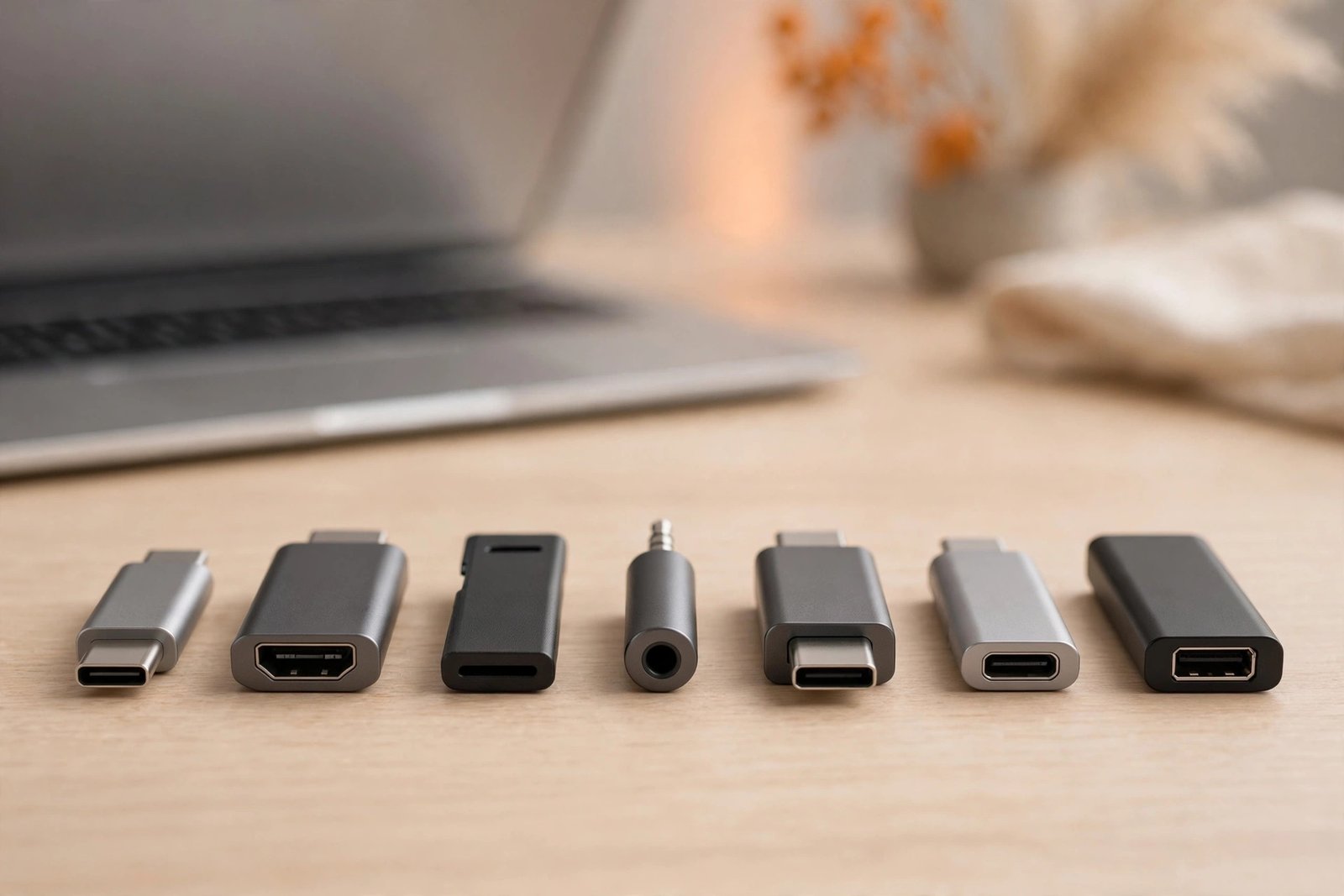
Nearly every USB-C adapter falls into one of five families. Learn these and you will never buy the wrong one again.
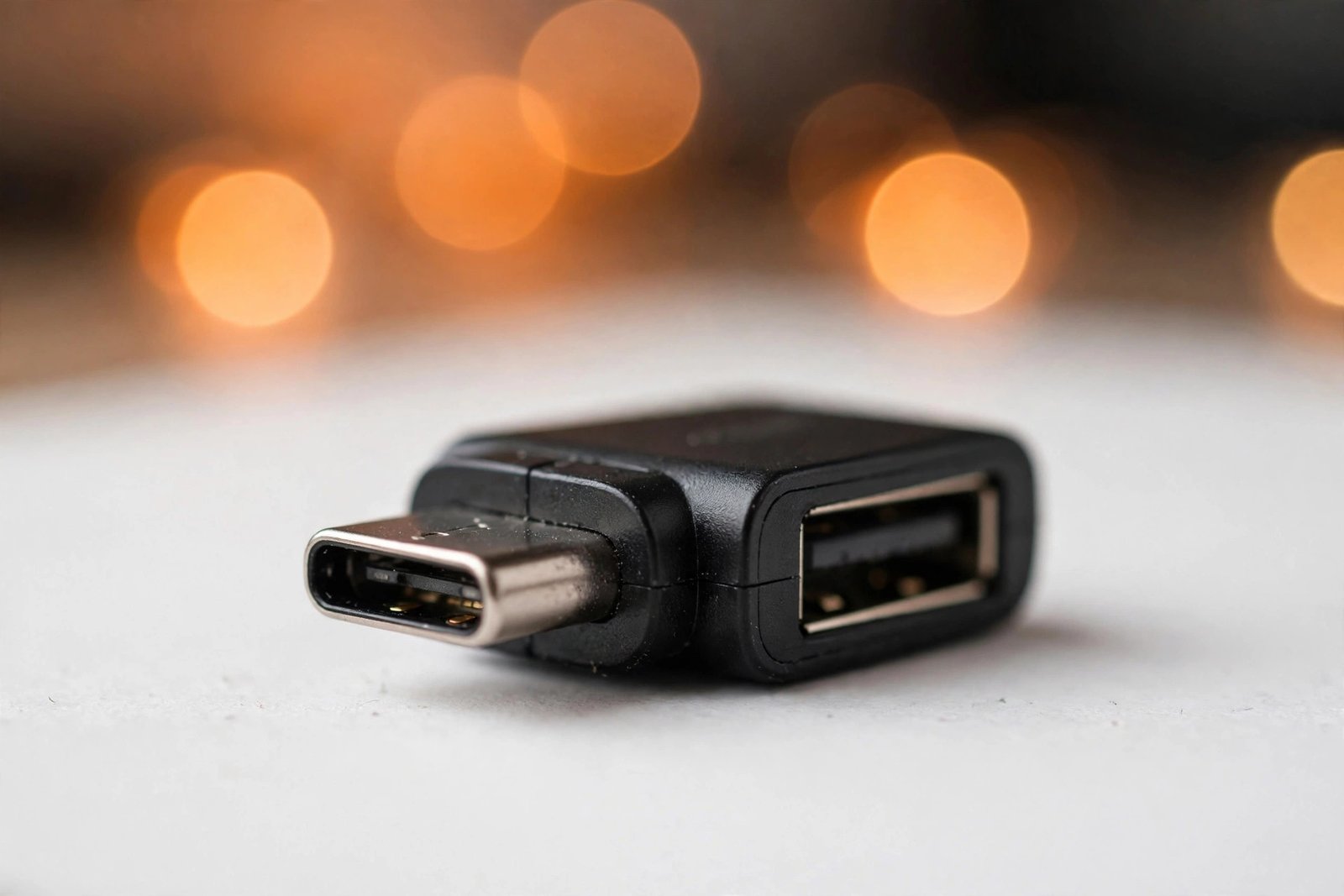
1. USB-C to USB-A adapters
The workhorse. These tiny plugs convert a USB-C port on your laptop or phone into a standard USB-A socket, so you can connect flash drives, wireless mouse receivers, printers and older external drives. If you buy only one adapter, make it this one — it solves the single most common connection problem in one step. Look for USB 3.0 or 3.1 versions rather than USB 2.0, so file transfers stay fast.
2. USB-C to HDMI adapters
For connecting your laptop or tablet to a TV, monitor or projector. These carry video and audio over a single cable and usually support 4K at 30Hz or 60Hz depending on the model. Essential for presentations, home cinema setups and anyone who docks a laptop at a desk. Note that a few budget laptops only support video over USB-C on specific ports — check your manual if nothing appears on screen.
3. USB-C hubs and docking stations
A hub turns one USB-C port into many: several USB-A ports, HDMI, an SD card reader and sometimes Ethernet or extra USB-C ports. Perfect for a desk setup where you plug in once and everything connects. Small travel hubs with three or four ports cover most needs; full docking stations with power delivery are the premium option for a permanent workstation.
4. USB-C to 3.5mm headphone adapters
Phones dropped the headphone jack, but wired earphones refuse to die — and for good reason: no charging, no pairing, no latency. A USB-C to 3.5mm adapter lets you keep using your favourite wired pair. These contain a tiny digital-to-analogue converter, so sound quality varies; a decent one sounds every bit as good as the old built-in jack.
5. USB-C OTG adapters and cables
OTG (On-The-Go) adapters let your phone or tablet act as the host: plug in a flash drive to move photos, connect a keyboard for serious typing, or attach a game controller. Most modern Android phones support OTG out of the box. It is one of the most underused tricks in mobile computing, and it costs almost nothing to unlock.
OUR PICK
USB-C to USB-A Adapter 3-Pack — £3.99
USB 3.1 speed for fast file transfers. Converts any USB-C port to a standard USB-A socket — flash drives, mouse receivers, printers and older accessories all work instantly. Three in a pack, so you can keep one in your laptop bag, one at your desk and one spare. The single most useful adapter most people will ever buy.
USB 3.1 vs Thunderbolt: does speed actually matter?
Here is where adapter shopping gets confusing. The USB-C connector is just the physical shape; the protocol running through it determines speed. A basic USB-C port might carry USB 2.0 speeds (480 Mbps), while USB 3.1 Gen 2 reaches 10 Gbps and Thunderbolt 3 or 4 hits 40 Gbps. The catch: an adapter can only pass through what the port provides, and the cable matters too.
For everyday adapters — flash drives, printers, mice, keyboards — USB 3.0/3.1 is more than enough, and Thunderbolt-rated adapters are overkill you will never notice. Speed ratings matter when you are moving huge files to an external SSD or driving a 4K monitor at high refresh rates. For those jobs, check that the adapter, the cable and the port all support the same standard; the slowest link in the chain sets the speed. For everything else, a well-made USB 3.1 adapter at a sensible price is the sweet spot.
How to choose the right adapter
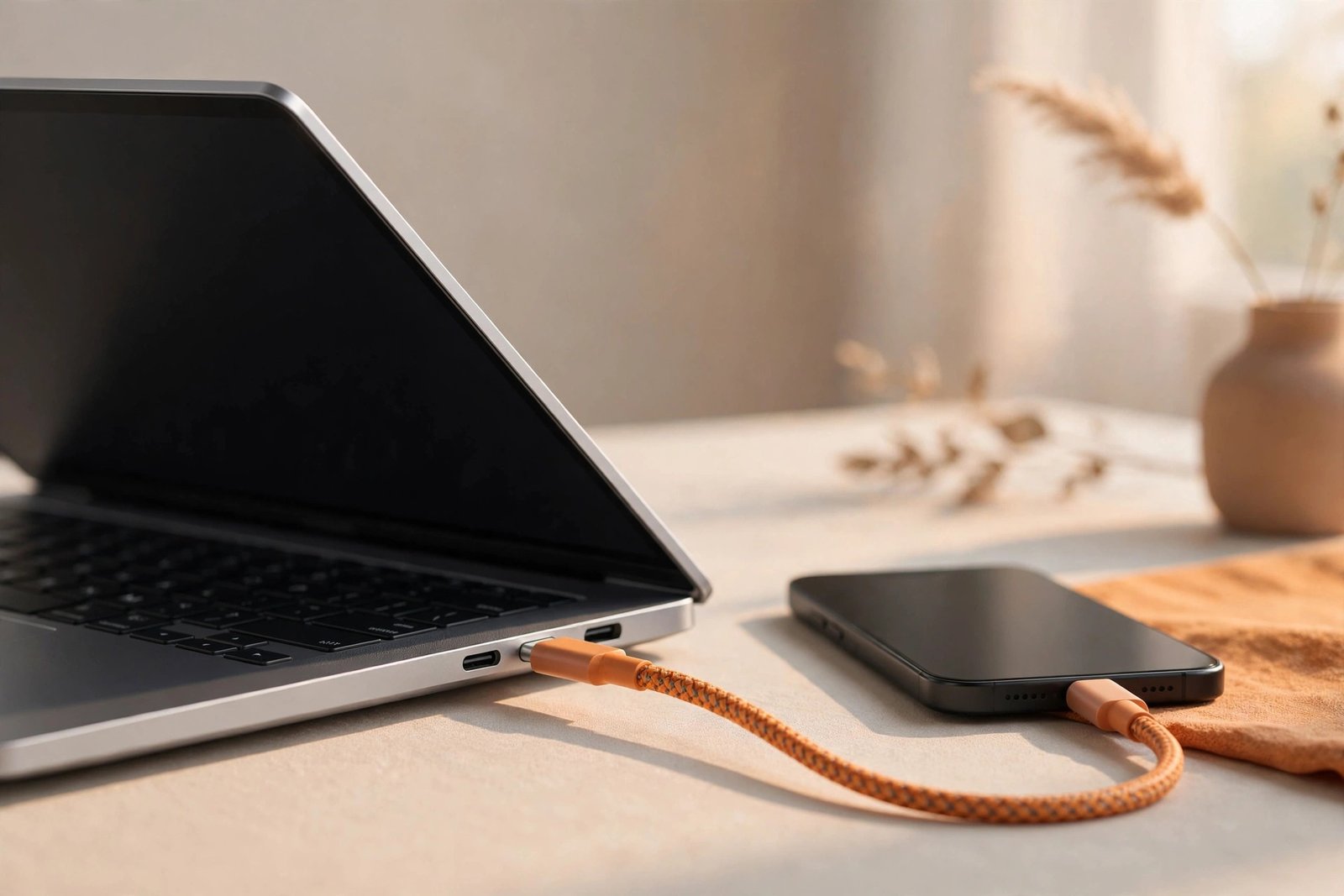
- Start from the accessory, not the port. List what you actually need to connect — the flash drive, the printer, the monitor — then buy the adapter that serves it. Buying “just in case” adapters is how drawers fill with unused dongles.
- Match the USB generation. For storage and anything moving real data, choose USB 3.0 or 3.1 over USB 2.0. The price difference is tiny; the speed difference is enormous.
- Check power delivery if you charge through it. If the adapter sits between your charger and your laptop, make sure it supports USB Power Delivery at your laptop’s wattage — otherwise charging slows to a trickle or stops entirely.
- For video, confirm the port supports it. Not every USB-C port carries a video signal. If your laptop’s manual mentions DisplayPort Alt Mode or Thunderbolt, you are fine; if not, no adapter in the world will produce a picture.
- Buy the 3-pack, not the single. Small adapters are easy to lose and endlessly useful. A multi-pack costs little more than a single and means you always have one where you need it.
- Prefer compact, solid builds. An adapter that wobbles in the port will eventually damage it. A snug, well-moulded plug outlasts a flimsy one many times over.
Common mistakes to avoid
Buying a hub when an adapter would do. A £30 hub is wonderful on a desk, but it is dead weight in a laptop bag if all you needed was to plug in a flash drive once a week. Match the tool to the job.
Assuming all USB-C cables are equal. The cable between your adapter and your device matters as much as the adapter itself. A charge-only cable will not carry data or video no matter how good the adapter is. If something is not working, swap the cable before blaming the adapter.
Ignoring the direction. Most adapters are directional: a USB-C to HDMI adapter sends video out of your laptop, but it will not take HDMI in from a games console. Read the product description for the direction you need.
Paying for Thunderbolt you will never use. Thunderbolt adapters are superb — and superbly priced. Unless you are editing 4K video off an external SSD or running dual 4K monitors, USB 3.1 does the same everyday job for a fraction of the cost.
Frequently asked questions
Do I need a USB-C adapter if my laptop already has USB-A ports?
Probably not today — but keep one in mind. Many newer laptops are dropping USB-A entirely, so the next laptop you buy will very likely need one. A cheap adapter bought now saves a frustrating first week with a new machine.
Will a USB-C to USB-A adapter slow down my flash drive?
Not if you choose the right one. A USB 3.0 or 3.1 adapter passes through full USB 3.x speeds; only a USB 2.0 adapter would bottleneck a fast drive. Check the specification before you buy — it is usually printed on the packaging.
Can I charge my laptop through a USB-C adapter?
Only if the adapter explicitly supports USB Power Delivery at a sufficient wattage. Simple data adapters often do not pass charging current at all. If charging matters, look for “PD” or “Power Delivery” in the specification and match your laptop’s charger wattage.
Why does my USB-C to HDMI adapter show no picture?
The most common cause is a port that does not carry video — not every USB-C port supports DisplayPort Alt Mode. The next most common causes are a charge-only cable in the chain, or a monitor input set to the wrong source. Check the port specification first; it solves the mystery nine times out of ten.
Are cheap USB-C adapters safe to use?
For simple data adapters, yes — there is very little to go wrong electrically, and a well-reviewed budget adapter is perfectly safe. Be more careful with adapters that handle power delivery or video: poor ones can charge slowly, run hot or drop the signal. Buy from a reputable seller and check reviews for anything carrying significant power.
What is the difference between USB-C and Thunderbolt?
They share the same connector shape, but Thunderbolt is a faster, more capable protocol (up to 40 Gbps) that also carries USB signals. A Thunderbolt port works with ordinary USB-C adapters; a plain USB-C port cannot use Thunderbolt-only features. For adapters, the practical difference only matters for high-bandwidth jobs like external GPUs or multi-monitor docks.
SORTED YOUR CONNECTIONS?
Shop Electronics at Nexaura Stores
Adapters, cables and mobile accessories — secure checkout and UK delivery as standard.